Tutorials • Email
Email communication encryption settings in cPanel
In this tutorial, learn how to generate and import encryption keys for email in cPanel, using GnuPG to ensure secure communication.
Views 1273Updated 2 aniPublished on 31/01/2018by Cătălin A.
Introduction
This tutorial explains how to generate and import an email encryption/decryption key into the cPanel account.
Requirements
- a cPanel account
Steps to Follow
- after logging into the cPanel control panel, in the interface that will display, we look for the "EMAIL ADDRESS" section, and there we click on "Encryption"
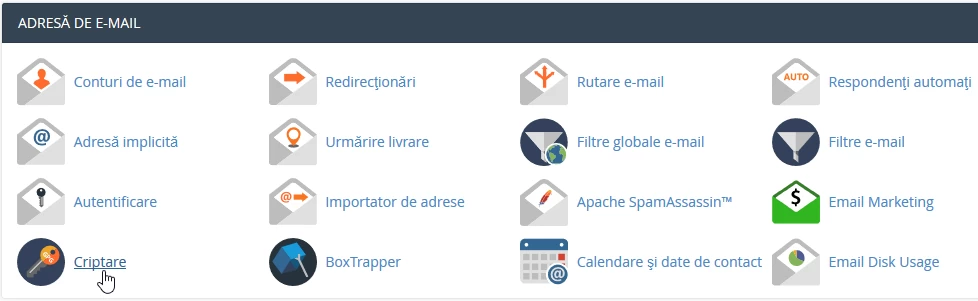
- GnuPG is a publicly available encryption scheme that uses a “public key”. However, in the case of GnuPG, messages are encrypted using the “public key”, but can only be decrypted and viewed with a “private key” that is held by the message recipient.
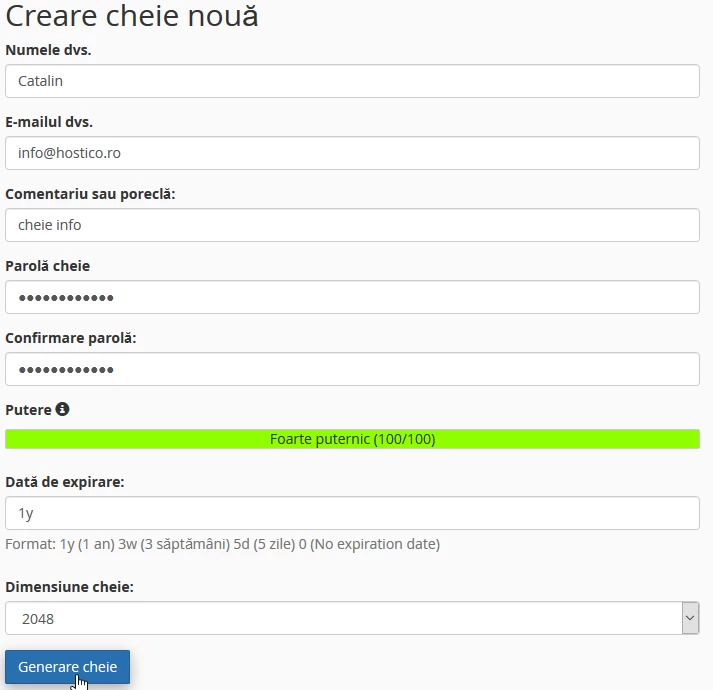
- to generate a key, the boxes must be filled in according to the requirements: name, email, comment, password, key validity, encryption level (key size) after which the "Generate key" button is pressed
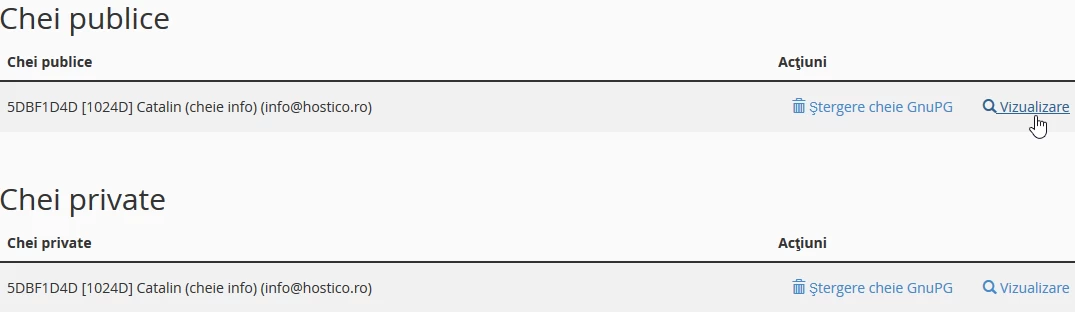
- The generator will create two keys: a public one, through which messages are encrypted, and a private one that must be sent to recipients to decrypt your messages. These can be viewed by pressing the "View" button to the right of each.
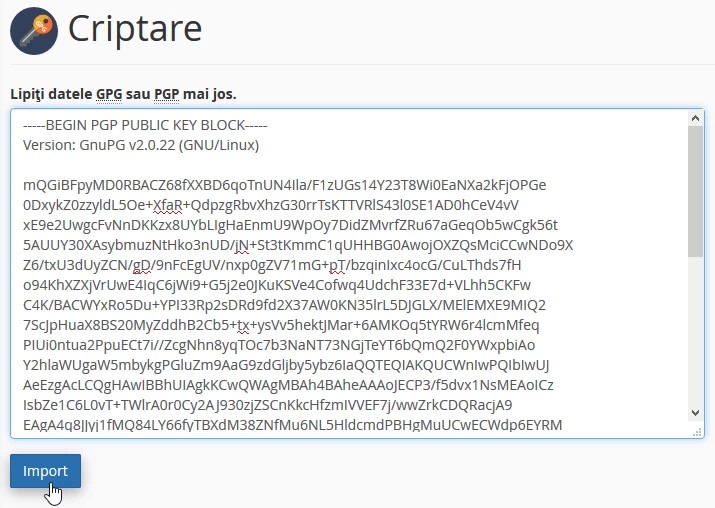
- if you want to import a decryption key, you can do so by pressing the "Import key" button
- in the next window the held decryption key must be placed, then click the "Import" button