Activating secure authentication (two-factor authentication) on the Hostico customer account (Two Factor Authentication - 2FA)
In this tutorial, the steps to activate secure authentication on the Hostico customer account will be illustrated.
Introduction
- This article describes the steps necessary to activate secure authentication from the Hostico client account.
Requirements
- Hostico client account;
- A smart mobile phone with an internet connection; internet;
Steps
- After logging into the Hostico customer account, the User section will be accessed;
- In the newly opened menu, you will access 2FA Authentication on the right side of the page;
- The next step is entering the password associated with the client account and activating the option by clicking on the green dial Activate;
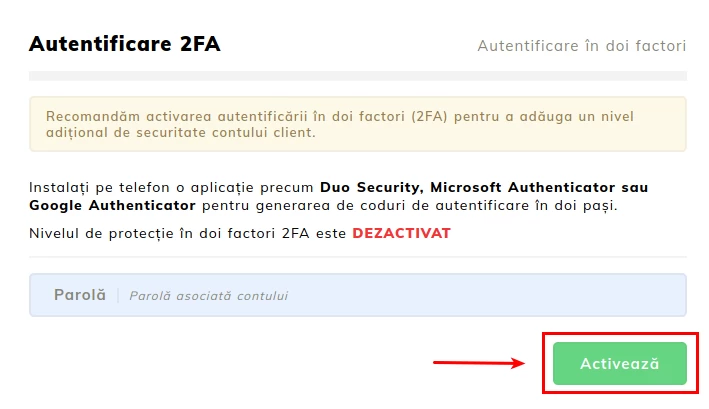
It is recommended to use a Smart mobile phone, accompanied by an application that will be used to generate the security code. We chose the Google Authenticator application, which is available on both Android™ and iOS® with the Microsoft Authenticator variant for Windows® Phone, and one of the links below, depending on the operating system of the phone:
1. For Android™ - Download Here
2. For Windows® Phone - Download Here
3. For iOS® - Download Here
- After we have the application downloaded and installed, we will need to correlate the Hostico client account with the application on the phone.
- In your Hostico client account, a series of 2 codes will be displayed that you need to use:
2FA code - represents the unique code that we will enter into the mobile application to establish the connection between the application and the client account;
Backup code - is the code that we will use in case we no longer have access to the application/generated codes by the application;
To do this, a time-based token will be selected from the application.
The next step is to enter the secret code into the application. This can be done in two ways: either we scan the QR code from the Hostico page, or we manually enter the provided code into the application.
.webp)
- Account - you will write the name by which you will identify what that code is issued for (example: Hostico);
- Key - the generated key will be entered in the customer account at the bottom of the QR code (example: the code found at 2FA code in the image below);
- It will be set Depending on the time and we will select Add.
After configuring the application, to complete the activation of 2FA, you will need to enter the first 6-digit code generated by the application in the field indicated by the red arrow in the image below.
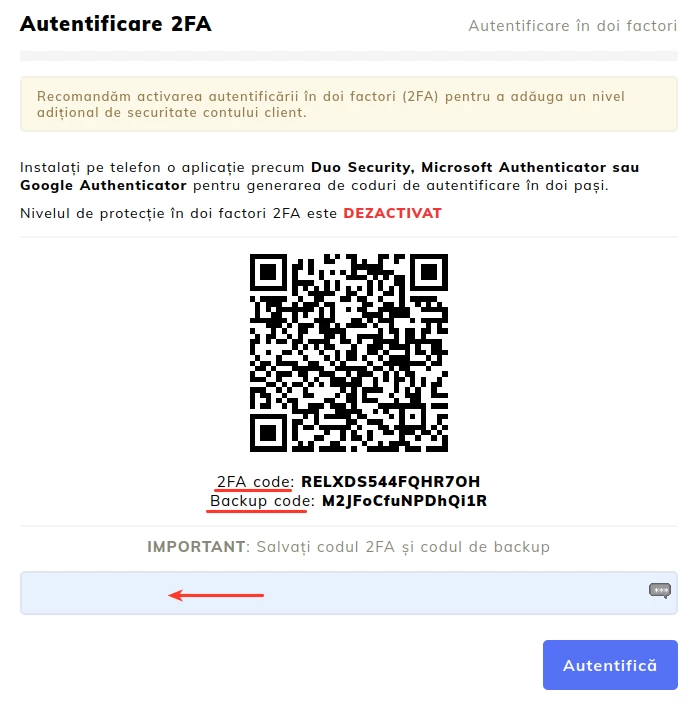
If the entered code is correct, a confirmation message will be displayed along with a recovery code. This code should be noted and kept safe. It can be used if two-factor authentication is not available.
Note
- Two-factor authentication adds an extra layer of protection to the authentication process. Once activated and configured, you will need to provide both your username and password, as well as a second authentication factor obtained through an app, during each login.
- The security code changes every 30 seconds. If the initially displayed code is not entered within 30 seconds, the next code displayed by the application must be entered.