Tutorials • Commercial
Changing the billing period.
In this tutorial, we will show you how to modify the billing period of the services held in your Hostico client account.
1
Views 1728Updated 2 aniPublished on 25/06/2020by Alexandru J.
Introduction
- This tutorial will illustrate the steps necessary to change the billing period of an active service;
Requirements
- client account existing Hostico;
- an active service;
Steps
Hosting Package
- After logging into the Hostico client account, go to the Services; section
- The service for which the billing period change is desired will be accessed;
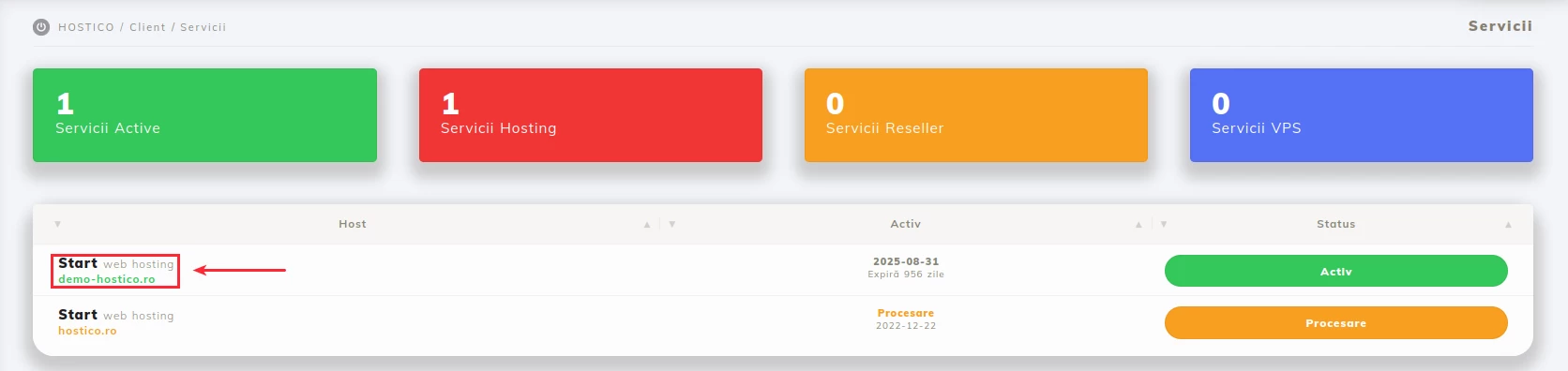 In the newly opened panel, we will access the UPGRADE menu;
- The Subscription section allows updating the billing period of the hosting package;
- Depending on the selected period, upon the service's due date, the proforma for the new billing period will be issued;
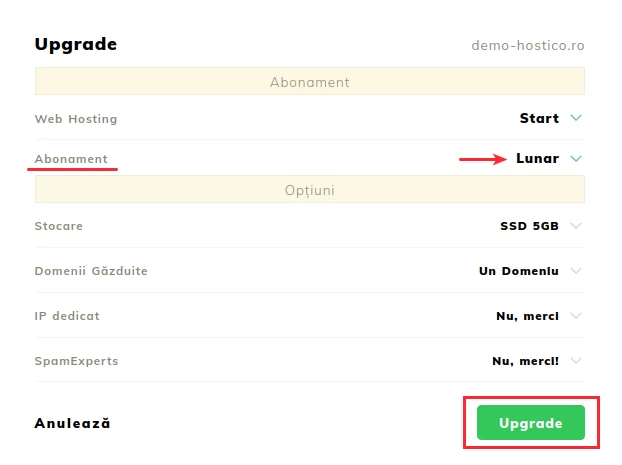 Click on the UPGRADE button to register the change;
Domain
- In the client account, we will click on the Domains section;
- In the opened panel, we access the Actions menu;
- The Renewal option allows us to select the period for which we want to renew the domain - depending on the period, the corresponding fee will be displayed;
 After selecting the period, click on the Renew;
Note
- Changing the billing period can only be done if the hosting service or domain is active and no proforma invoice has been generated in the account for service renewal;
- If you wish to change the billing period, respectively update the proforma invoice of a suspended service, please contact the sales department at office@hostico.com.