Tutorials • WHM
Changing the space of a cPanel account from the WHM admin panel
This article explains how to change the allocated space for one or more cPanel accounts.
Views 1141Updated 2 aniPublished on 19/06/2018by Cătălin A.
Introduction
This tutorial explains how to modify the space allocated to one or more cPanel accounts from the reseller WHM administration panel
Requirements
- a WHM account
Steps to Follow
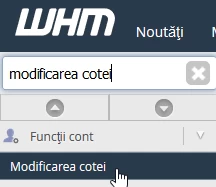
- Once logged into the WHM administration panel, search in the top left search box for "Modify Quota" and select the obtained result
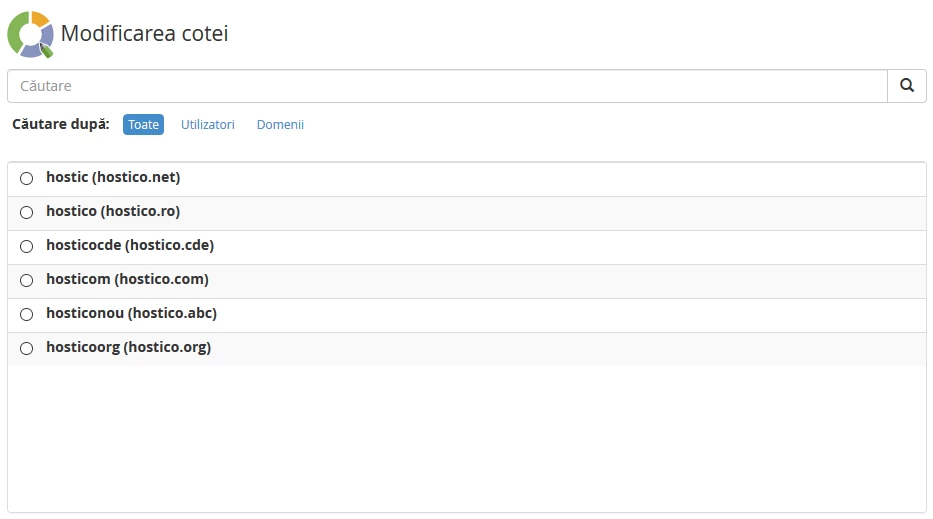
- in the window that will be displayed, you can select from the list the account for which you want to change the space quota or in case there are multiple accounts created, you can search using the search box in the displayed window
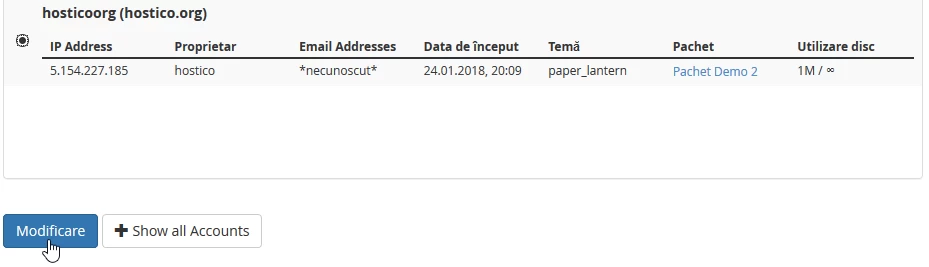
- after selecting the desired account, press the "Modify" button
- within the next window, a table will be displayed in which you can manually set the allocated space, in MB, for that account in the "Quota" box
- The "Show all Accounts" button will display tables with the quota change for all individual accounts
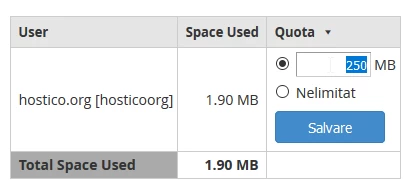
- after setting the desired quota, press the "Save" button
- after the successful completion of the operation, a confirmation message will be displayed in the bottom right corner of the page
