Connecting a domain with the Shopify platform
Learn how to connect a domain with Shopify, including steps for modifying DNS records and verifying domain ownership.
Introduction
- In this tutorial, we will show you how to connect a domain to the Shopify platform.
Requirements
- Access to the cPanel account.
- Settings for connecting to Shopify
Steps
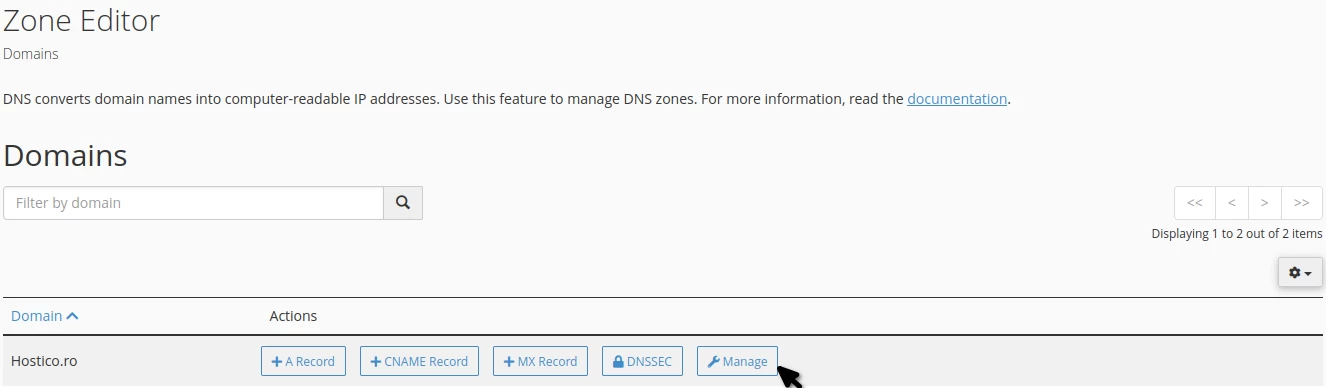
- Log in to your cPanel account, go to the Domains section, and click on Zone Editor.

Click on Manage for the domain you want to connect to Shopify.
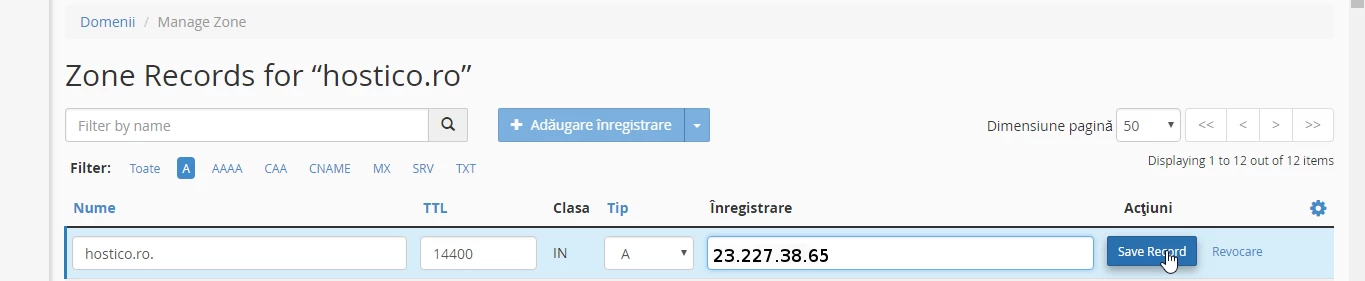
- On the new page, under Filter, select A to display A records.
- Change the IP address of the A record for the desired domain to the IP address provided by Shopify. For example, the IP address may be 23.227.38.65.
- Save changes by clicking on Save Record.
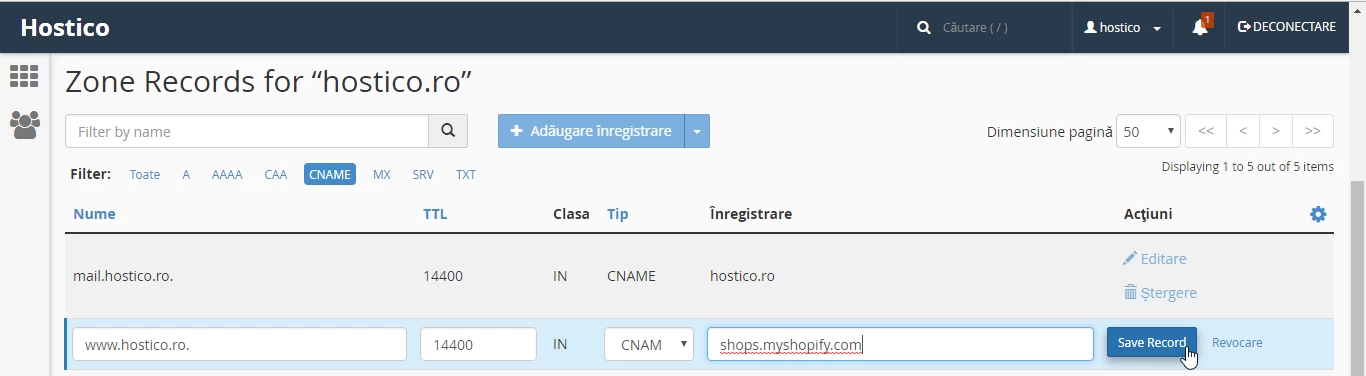
- Modify the www CNAME record for your domain to point to shops.myshopify.com (the address may vary).
- In Filter, select CNAME to display the CNAME records.
- In order for the email to continue functioning on our server, you need to change the mail record from CNAME to A, using the IP address of the shared server or dedicated account.


Shopify introduces two additional required records: one for adding an IPv6 address and another for verifying the domain owner. We will add them as follows:
Adding the IPv6 address in the DNS zone:
2620:0127:f00f:5::

Adding the TXT record for domain ownership verification:
From the Shopify admin page, go to Settings > Domains.
Click on Connect existing domain.
Enter the domain (for example, hostico.ro), then click Next.
A notification will prompt you to verify the domain by creating a TXT record in the DNS settings.
In the Domain ownership verification section, copy the unique value of the TXT record. If you are connecting a subdomain, add an underscore and the subdomain name in the TXT record name (for example, shopify_verification_shop for shop.hostico.ro).

Return to the Shopify interface and click on Check Connection. If the check is successful, the domain will appear as connected on the Domains page.
- Domain verification can take up to 48 hours. After verification, your domain will be listed as connected in Shopify.