Tutorials • DNS
Parking a domain using WHM
Learn how to park a domain using WHM. Follow the steps to configure the DNS and ensure that your domain is correctly associated.
Views 1334Updated 2 aniPublished on 26/09/2018by Sebastian S.
Introduction
- The DNS (Domain Name Service) converts human-readable domain names (e.g.: example.com) into computer-readable IP addresses (e.g.: 192.0.32.10). DNS relies on "DNS zones" that exist on the server to convert domain names to IP addresses.
- WHM offers the ability to park a domain through the DNS Functions features.
Requirements
- WHM login details. These can be found in the email with the management details of the reseller account or the VPS with cPanel/WHM.
Steps
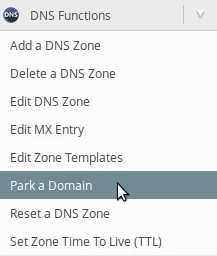
- After logging into the WHM panel on the left side of the page, we will go to the DNS Functions section and click on Park a Domain. Alternatively, we can search for this menu using the search field at the top right.
- On the next page, we will have two fields:
Domain to park on top of - Here we will be able to select the account on which we will park the domain.
Domain to park - The domain we wish to park. - After filling in the fields, we will click on the Submit button.
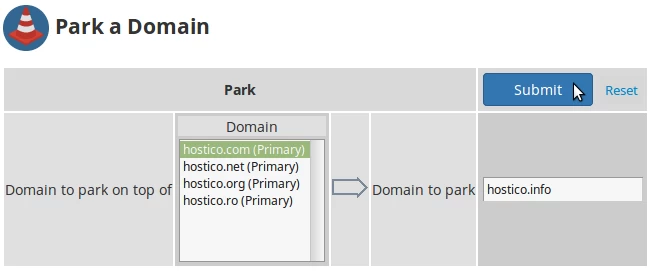
- In the example above, I parked the domain hostico.info on the hostico.com account. In this way, the parked domain will load the content of the main domain of the selected account.
- For everything to work, the parked domain must have the nameservers associated with the server where we made these changes set.
- If everything has gone smoothly, we will be greeted by a confirmation message in the form of The system successfully parked (aliased) the domain “hostico.info” on top of the domain “hostico.com”.