Tutorials • ISPConfig
Setting up an Email Alias filter for a mailbox in the ISPConfig control panel.
This tutorial will present the necessary steps to configure an Email Forward filter, which will forward messages received at a non-existent email inbox to another inbox created on the server.
Views 1121Updated 1 anPublished on 29/11/2022by Alexandru J.
Introduction
- The Email Alias feature allows the email server to automatically forward messages received at a non-existent email address in the panel to another address configured on the server.
- For example, all messages received at the address utilizator@hostico.net can be redirected to office@hostico.net, provided that utilizator@hostico.net is not created on the server.
- The alias address redirects incoming messages to an already existing or previously created email address.
- An email alias does not represent a real mailbox and can be deleted if it is no longer needed.
Requirements
- The administration details for the ISPConfig panel are provided to the email inbox associated with the Hostico account at the time of VPS activation.
Steps to follow
- Log in to the ISPConfig control panel using one of the following addresses:
https://SERVERNAME:10200
https://SERVER_IP:10200
https://DOMAIN.TLD:10200
- After logging in, click on the Email button in the navigation bar.
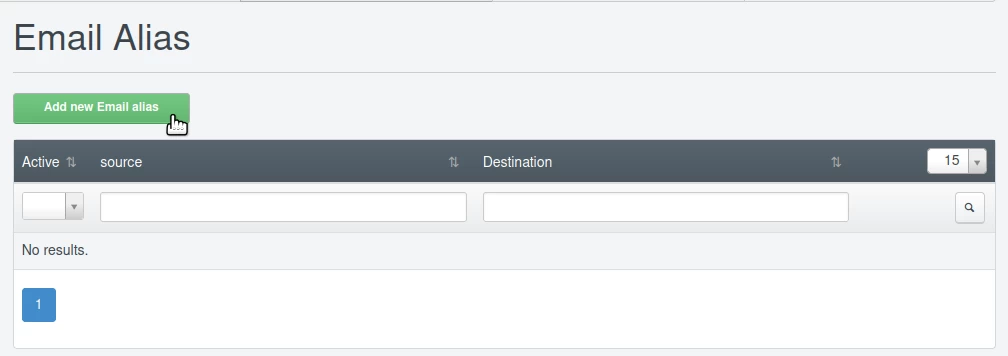
- Then, select the option Add new Email alias.
Field Configuration
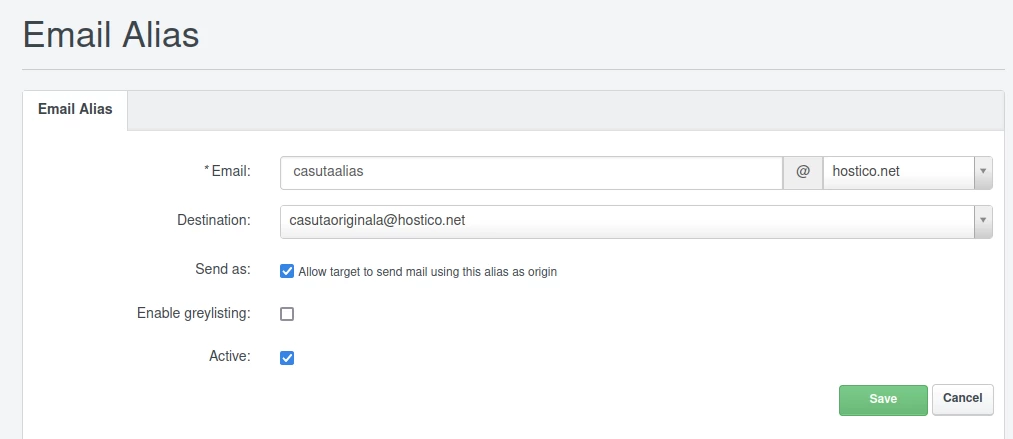
In the next window, fill in the fields as follows:
- Email: The email address to which you want to redirect messages.
- Destination: The email address created on the server to which you want to redirect messages.
- Send as: It remains checked.
- Enable Greylist: Check this option if you want messages to be passed through the Greylist spam filter.
- Active: Leave it checked.